Update Payment Details
This page explains how to change the credit card used for a paid Appsmith Cloud subscription. Open the Stripe billing portal from your organization's Billing page to update your payment method.
If you manage a self-hosted subscription, sign in to the Appsmith Customer Portal with the account associated with your subscription to manage billing. The Cloud steps below apply to your Appsmith Cloud organization.
Prerequisites
- A paid Appsmith Cloud subscription.
- Access to Admin Settings → Billing in the organization whose payment method you want to update. If you cannot access this page, ask your organization administrator to complete the update. Being a workspace administrator alone does not grant billing access.
Open the billing portal
-
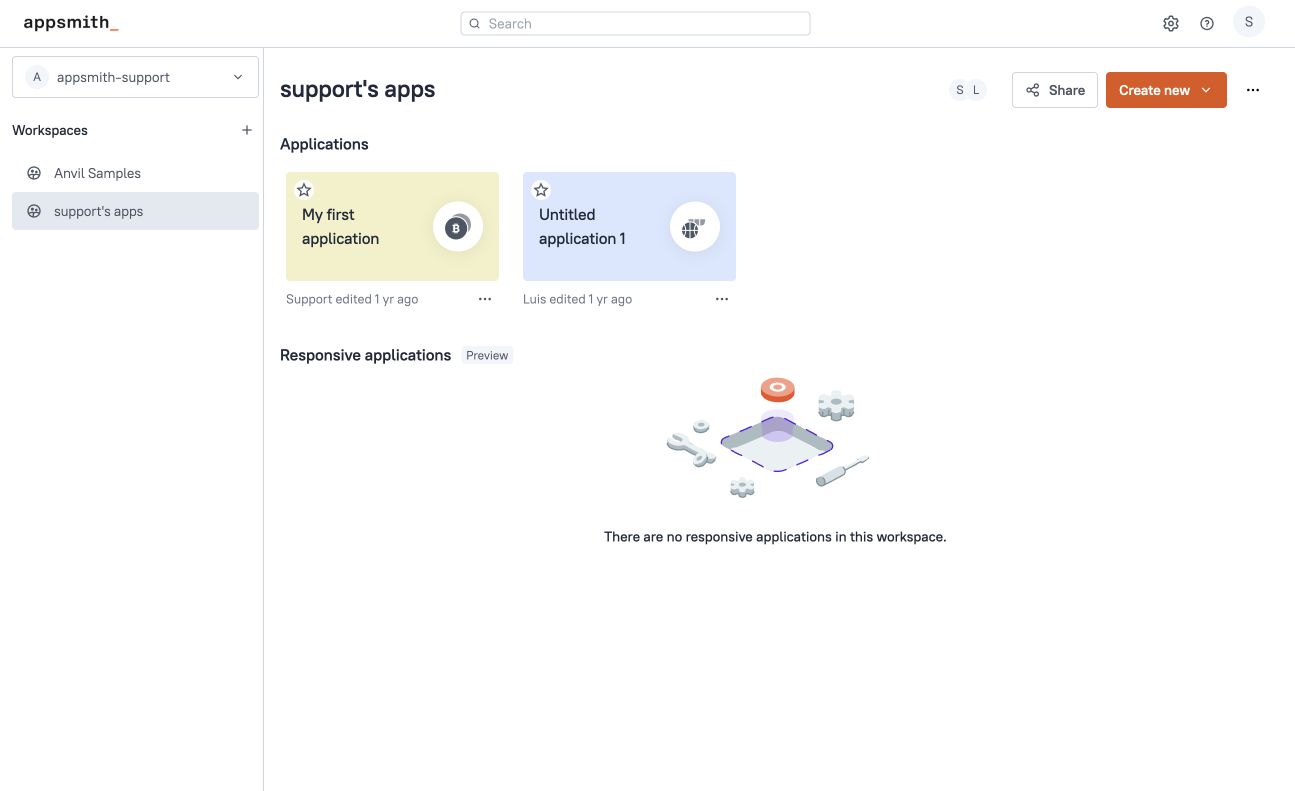
Sign in to your Appsmith Cloud organization and open the applications home page.
-
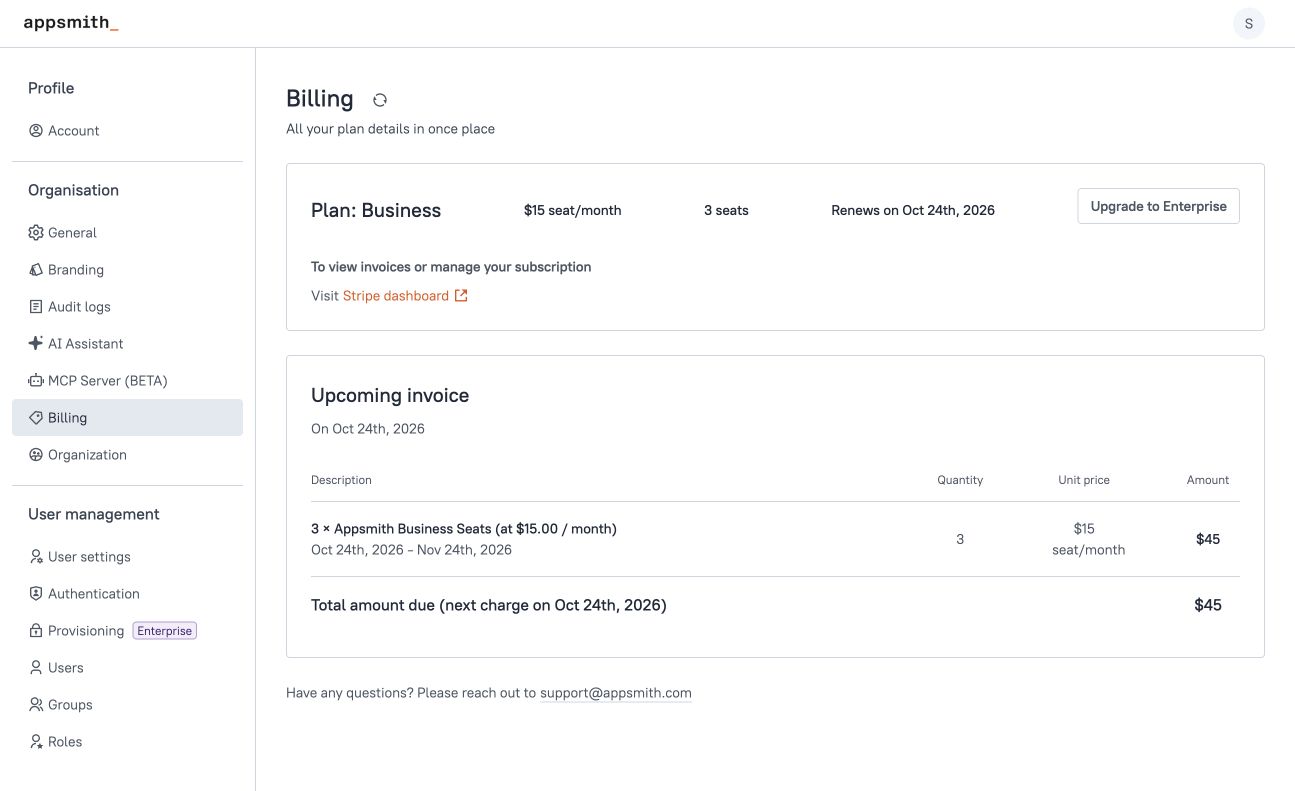
Open Admin Settings using the gear icon in the top-right corner, then select Billing.
-
In the plan card, find To view invoices or manage your subscription and click Stripe dashboard, next to Visit.
The Stripe billing portal opens in a new tab for that organization's subscription.
Update your card
-
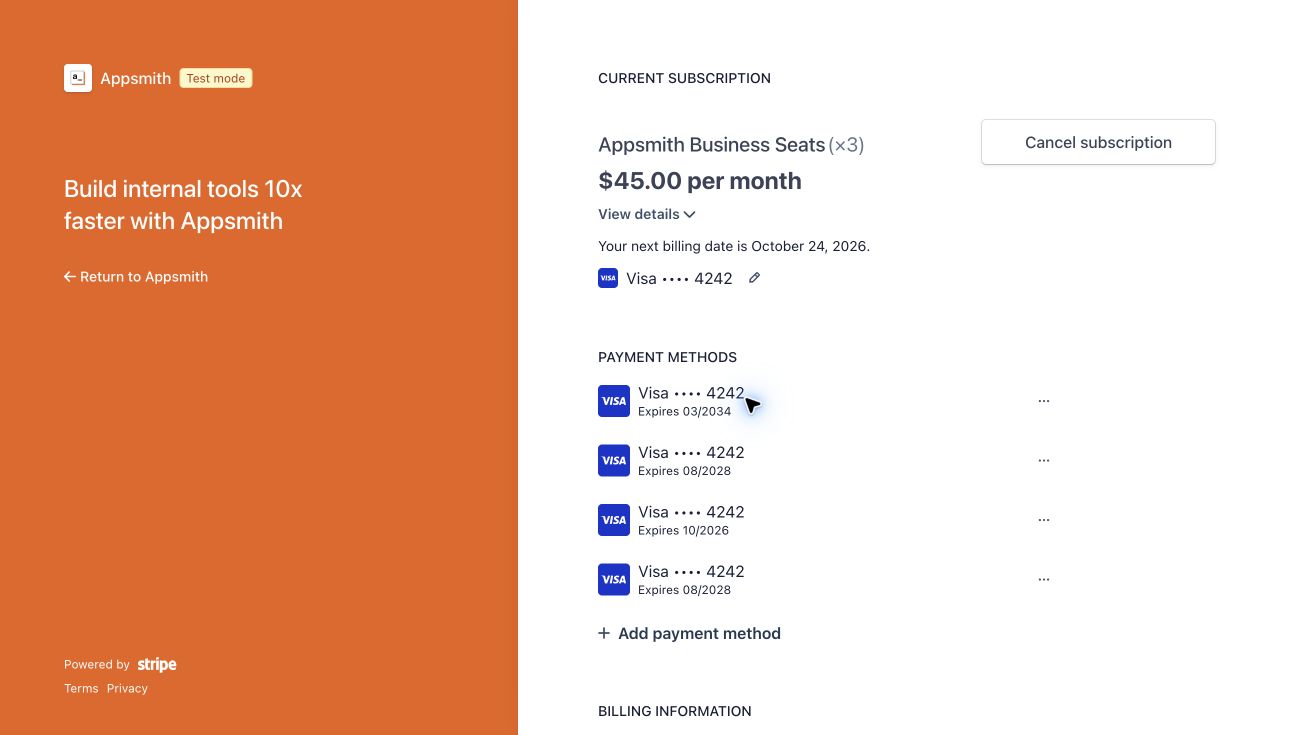
In the Stripe billing portal, find Current subscription and click the pencil icon beside the card currently used for that subscription.
-
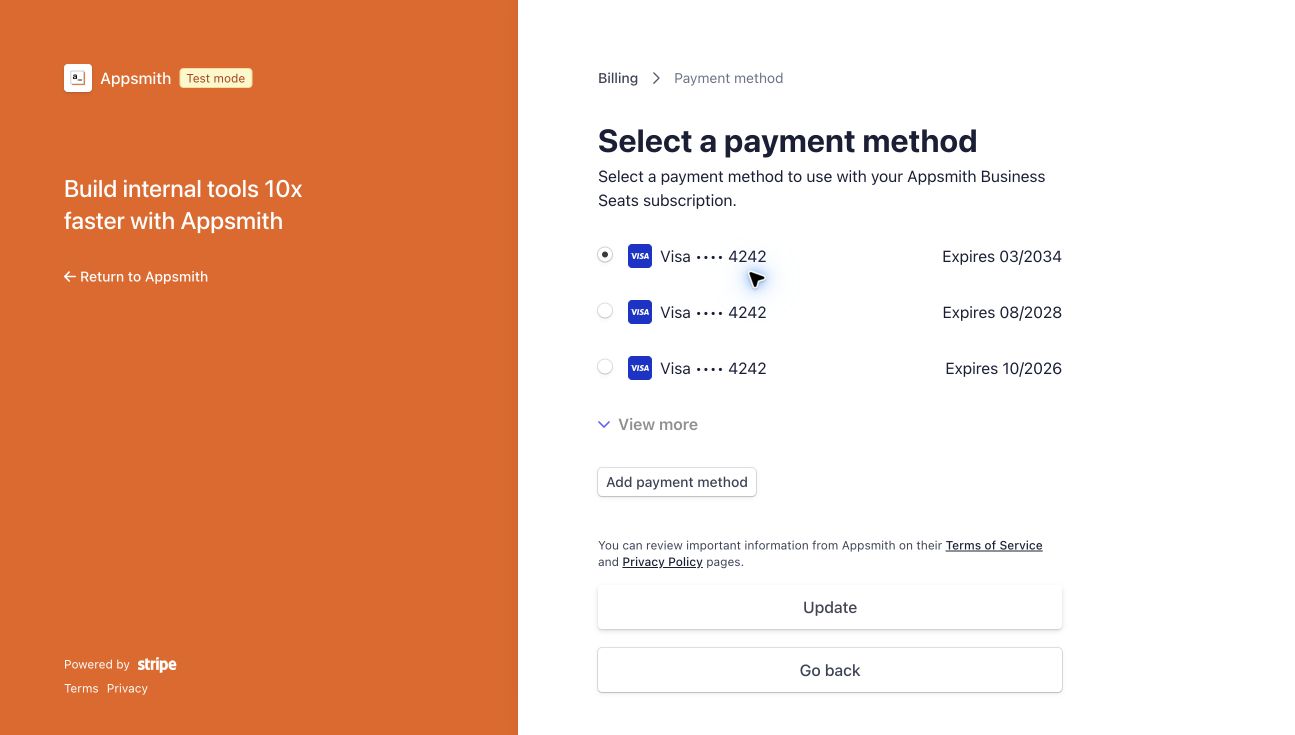
On Select a payment method, select a saved card, or click Add payment method to enter a new card's details.
-
If adding a new card, select Card and enter the card number, expiration date, security code, and any billing details requested by Stripe.
-
Click Update and complete any verification prompts from Stripe or your card issuer.
-
Return to the billing overview and confirm that Current subscription shows the intended card.
Use the subscription's card selector to choose which card it uses. If you add a card from the separate Payment methods section, also check the card shown under Current subscription.
Troubleshooting
Billing is missing or inaccessible
Check that you are signed in to the correct organization. Ask your organization administrator to open Admin Settings → Billing and update the payment method.
The Stripe link is missing
Free plans and Cloud trials display plan selection instead of the paid billing details. Confirm that you have opened the organization with the paid subscription. If your paid organization still does not show the link, contact Appsmith support.
The Stripe portal does not open
The link opens a new tab. Check whether your browser blocked the pop-up, allow it for your Appsmith organization, and click Stripe dashboard again. If Appsmith reports an error, contact support with the error message and your organization URL.