Approved Analytics (GA4)
Approved analytics lets published apps send page views to Google Analytics 4 (GA4). Appsmith uses only the GA4 measurement IDs that an administrator approves. Viewers see a consent banner, and nothing loads from Google until they allow it.
Approved analytics supports GA4 only. You cannot add your own tracking scripts, and Google Tag Manager is not supported.
Before you begin
- Approved analytics is available on paid plans of the Appsmith Commercial Edition. It is not available on the free plan or in the Community Edition.
- It is not available on air-gapped instances.
- You need a GA4 property and web stream whose Google tag you can configure. Before you approve an ID, prepare the tag and the property as described in Prepare your Google tag and GA4 property.
Turn on analytics and approve IDs
An administrator turns approved analytics on for the organization and keeps the list of approved measurement IDs.
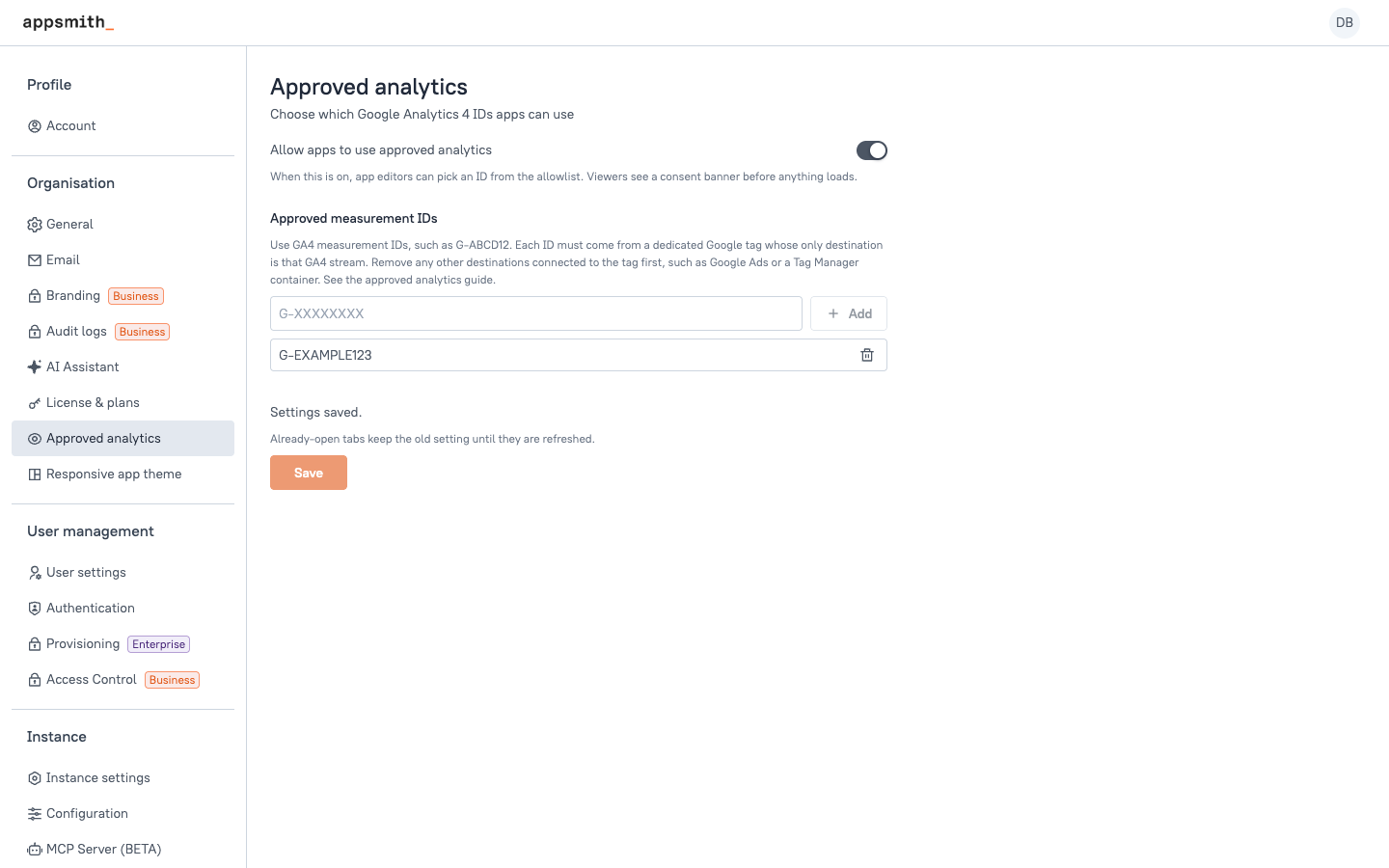
- Open Admin Settings.
- Under Organisation, select Approved analytics.
- Turn on Allow apps to use approved analytics.
- Under Approved measurement IDs, enter a measurement ID and click Add. Repeat for each ID you want to approve.
- Click Save.
Measurement ID rules
- The list holds at most 20 IDs.
- An ID must be
G-followed by 4 to 20 capital letters or digits, such asG-ABCD12. - Appsmith checks the ID exactly as you type it. It does not trim spaces or change case, so
g-ABCD12andG-ABCD12are refused. - Google Tag Manager (
GTM-), Google tag (GT-), Google Ads (AW-), Floodlight (DC-), and Universal Analytics (UA-) IDs are refused. So are URLs.
Who can change these settings
Who can edit approved analytics depends on whether your organization has granular access control:
- With granular access control: only an instance administrator. An organization administrator who is not an instance administrator cannot turn analytics on.
- Without granular access control: the organization's super user.
Already-open tabs keep the old setting until they are refreshed.
Set analytics for an app and its pages
After an administrator approves at least one ID, app authors choose which ID each app and page uses.
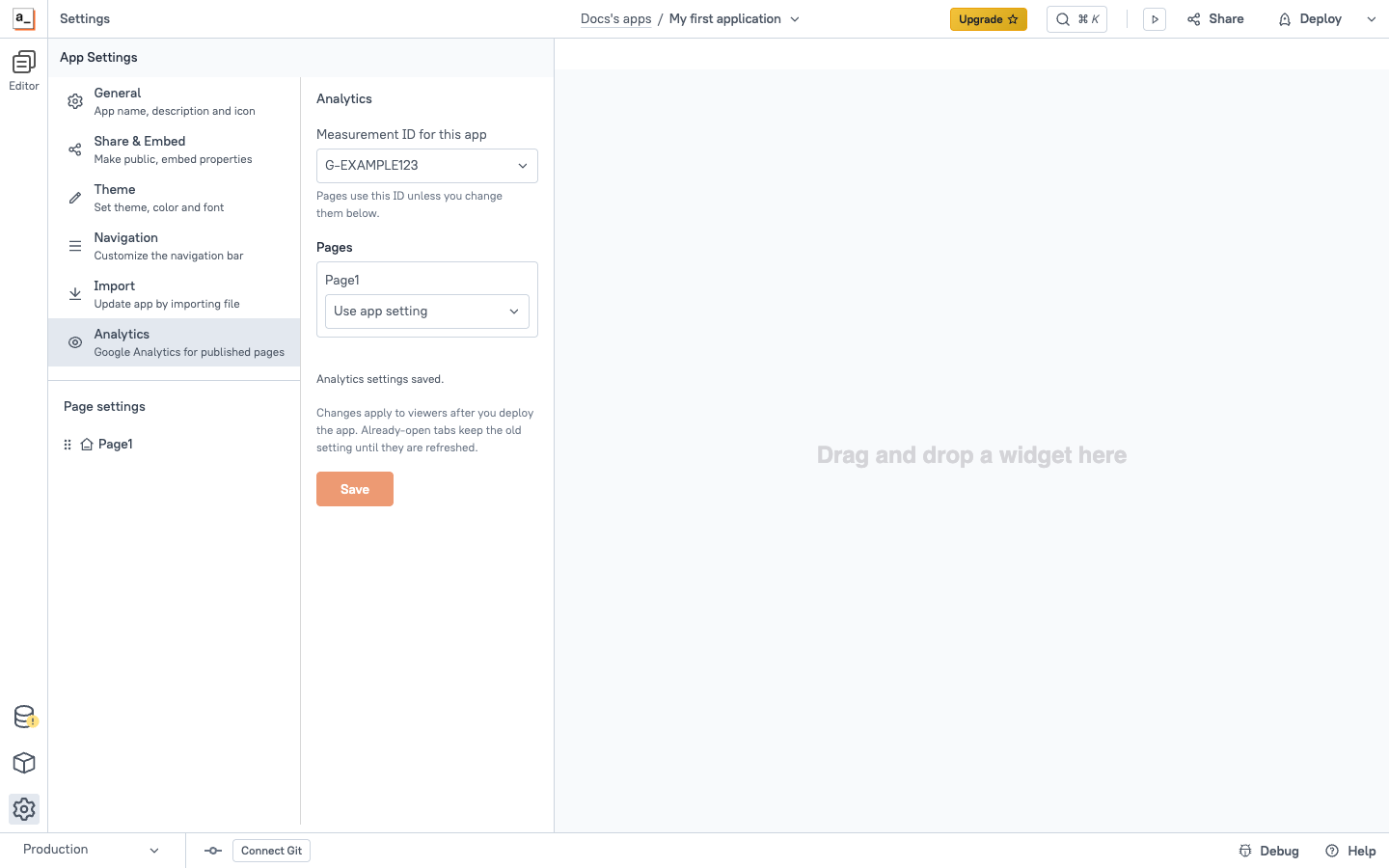
- Open the app in the editor and open App settings.
- Select Analytics.
- Under Measurement ID for this app, pick an approved ID, or pick Disabled to leave the app default off. Pages use this ID unless you change them.
- Under Pages, set each page:
- Use app setting: the page uses the app's ID. This is the default. If the app default is disabled, the page has no analytics.
- Disabled: the page sends nothing.
- Use a different ID: the page uses another approved ID that you pick. Select an ID before saving. This can enable analytics for the page even when the app default is disabled.
- Click Save.
- Deploy the app. Changes apply to viewers after you deploy. Already-open tabs keep their previous settings until refreshed.
To disable analytics for every page in an app, set the app default to Disabled and set any page overrides to Use app setting or Disabled. Disabling the app default alone leaves page overrides active.
If an administrator removes an ID from the allowlist, apps and pages that use it show No longer approved, and analytics does not run with that ID. Choose another ID or turn analytics off. If an administrator turns approved analytics off for the organization, your settings are kept and take effect when it is turned on again.
Verify a published page
- Open the deployed app in a browser profile with no saved analytics choice for the app.
- Open a page configured to use an approved ID. Confirm that the consent banner appears at the bottom left.
- Select Allow analytics.
- In the GA4 property that owns the selected ID, check incoming
page_viewevents in Realtime. Reports may take time to update. - Navigate to another enabled page and confirm that its page location identifies that page.
Appsmith reports a synthetic location, such as https://apps.example.com/app/<baseApplicationId>/page/<basePageId>, and the fixed title Appsmith page. App and page names do not appear as report titles. See What Appsmith sends to Google.
To inspect requests, open your browser's developer tools before reloading and use the Network panel. Before consent, this feature should make no request for Google's tag library. After allowing analytics, look for gtag/js and GA4 collection requests, and check the page location, title, and referrer. A sent request confirms browser activity; check the intended GA4 property to confirm that the data arrives.
What viewers see
When a viewer opens a published page that has analytics on, Appsmith shows a consent banner at the bottom left of the page. Nothing loads from Google before the viewer makes a choice: no script and no preconnect.
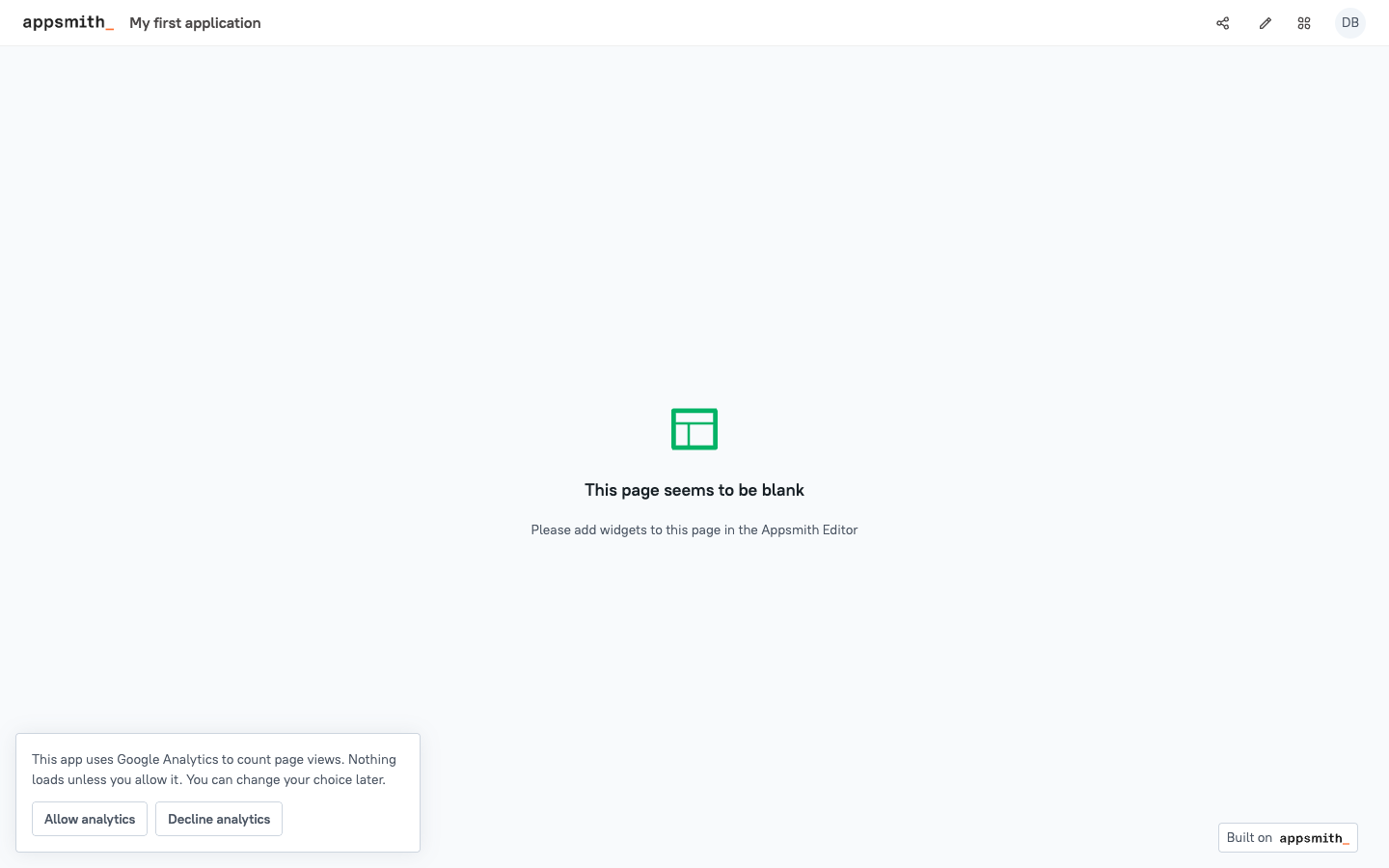
- Allow analytics loads GA4 and sends page views.
- Decline analytics keeps GA4 off.
Appsmith stores the choice in the browser's local storage for 180 days. The choice is tied to the organization, app, measurement ID, policy revision, and consent notice version. A change to any of these requires a new choice. Clearing local storage also removes the choice.
If the browser blocks storage or storage is full, a choice can apply to the current page without being saved for a later load. The viewer may see the banner again. When storage is available, a consent change in another tab for the same app is handled through browser storage events.
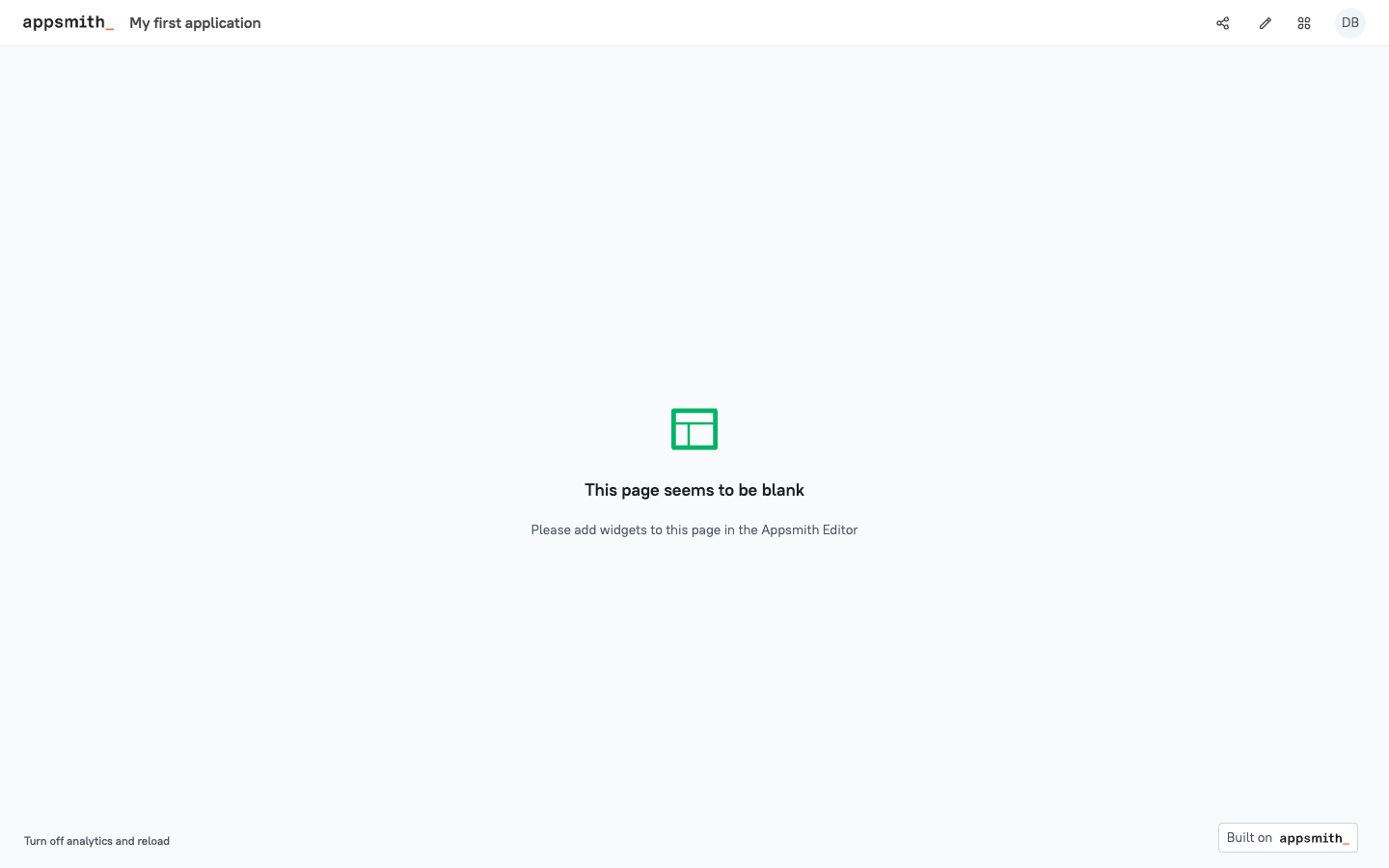
After the viewer chooses, a small control stays at the bottom left:
- After Allow analytics, Turn off analytics and reload turns GA4 off, deletes the Appsmith analytics cookies, and reloads the page. Data that was already sent cannot be recalled.
- After Decline analytics, Analytics choices shows the banner again.
What Appsmith sends to Google
Appsmith limits what the page views contain:
- It sends a page view when an enabled page becomes active after consent. Repeated renders of the same page do not send another view. Navigating to another page and returning can send a new view; changing only query parameters does not create another view for the same page.
- The page location is made up:
<origin>/app/<baseApplicationId>/page/<basePageId>. - The page title is always
Appsmith page. - The referrer is the previous made-up location in the same app, or empty.
- Appsmith does not use the real URL, query string, URL fragment, document title, or browser referrer to build these page views. Google's other collection features are separate, as described below.
- Cookies are host-only, so only the app's exact hostname can read them, not a parent domain or its subdomains. They use Appsmith-owned names,
appsmith_aa_gaandappsmith_aa_ga_<ID without G->, so they never share the_gacookie of other Google Analytics on the same domain. - Google signals and ad personalization are turned off in the tag.
Once GA4 has loaded, Appsmith loads a fresh page when the viewer moves to a page with another ID or with analytics off, leaves the app, or switches branch. A change to the query string alone stays in the app.
Appsmith controls only the page views it sends. Google's own features, set on your Google tag and GA4 property, can still collect more. The next section explains which settings to change.
Prepare your Google tag and GA4 property
Do this for every measurement ID before you approve it. Appsmith cannot check these settings for you. Keeping the tag and property limited to one GA4 stream is your responsibility.
Use a dedicated Google tag
A G- measurement ID loads a Google tag, not GA4 alone. A Google tag can have other destinations connected to it, such as Google Ads or another GA4 property, and it sends the same events to every destination. Appsmith cannot see or change these connections.
- In the Google tag settings for the ID, open the tag's Destinations.
- Make sure the only destination is the GA4 stream that owns the ID.
- Remove any Google Ads, Floodlight, Tag Manager container, or other GA4 destinations from the tag. If the tag must keep them for another site, create a new web stream and a new tag just for Appsmith.
- In the GA4 property, open Admin > Product links. Remove links that share this property's data, such as Google Ads, BigQuery, Search Ads 360, and Merchant Center.
- In the GA4 property, open Admin > Data collection and turn off Google signals.
- Check the tag and the property again whenever someone changes your Google account setup. A destination or link added later applies at once.
For details, see Google's guides on destinations and destination tags and configuring Google products with gtag.js.
Change the Enhanced measurement settings
Google's Enhanced measurement runs inside the Google library. It can send the real URL, search terms from the query string, and form details. These settings live on the GA4 web stream.
Open Admin > Data collection and modification > Data streams, select your web stream, and open Enhanced measurement > Settings. Then:
- Page views: open the advanced settings and turn off page views on browser history events.
- Site search: turn it off. It reads search terms from the URL.
- Form interactions: turn it off.
- Video engagement: turn it off. It can send video URLs for supported embeds, such as YouTube.
- Outbound clicks and File downloads: turn them off unless your data policy allows sending link URLs.
For details, see Google: Enhanced measurement.
Content Security Policy
The Caddy configuration that ships with Appsmith sets only frame-ancestors, so it does not block the GA4 script. If you set your own Content Security Policy (CSP), add the hosts that Google documents for Google Analytics without Ads features.
Add the Google hosts to the sources your policy already allows. Do not replace those sources. A script-src-elem directive that lists only Google's host blocks Appsmith's own scripts, and the app does not load. The same applies to img-src and connect-src.
For example, if your policy has script-src 'self', img-src 'self' data:, and connect-src 'self', the result is the following. It is one Content-Security-Policy header value, split across lines here for reading:
script-src 'self';
script-src-elem 'self' https://www.googletagmanager.com;
img-src 'self' data: https://www.googletagmanager.com https://*.google-analytics.com;
connect-src 'self' https://www.googletagmanager.com https://*.google-analytics.com https://*.google.com
- End each directive with a semicolon, except the last. Without the semicolons, the browser reads everything as one
script-srcdirective, and the Google hosts anddata:become allowed script sources. - Keep every other source your directives already contain, such as CDN, websocket, or datasource hosts.
Appsmith does not add a nonce to the GA4 script. If your policy blocks the script, analytics stays off and the app still renders.
A CSP controls what loads. It does not sandbox the Google library. Once loaded, the library runs in the page with the viewer's session, so approving a property is a decision to trust Google.
Limits
- Open tabs: a tab that is already open keeps the setting it loaded with until it is refreshed. This applies to policy and allowlist changes.
- Removing an ID: every app and page that uses it turns off for new page loads. The setting is kept, and authors see No longer approved.
- Import and Git: app and page settings are carried with the app, and each page keeps its choice. A carried ID does nothing unless the target organization approves it.
- Fork: Appsmith copies the app's analytics settings and matches each page choice to the copied page, so a page disabled in the source stays disabled in the fork. If Appsmith cannot match the pages, the fork starts with analytics off. A carried ID does nothing unless the target organization approves it.
- Clone (duplicate app): a clone starts with analytics off. Set it up again in the clone.
- Rollback: if you roll back to an older Appsmith version, it drops app and page analytics settings the next time it saves an app. The organization's policy and allowlist are kept.
- Audit log: import, Git, and fork carry settings without writing an audit log entry.
Audit log
Appsmith writes an audit log entry each time someone saves approved analytics settings through Admin Settings or App settings:
| Event | Logged when |
|---|---|
| approved_analytics_policy.updated | An administrator changes the on/off switch or the list of approved measurement IDs. |
| approved_analytics_settings.updated | An app author changes the app's measurement ID or a page's analytics setting. |
Each entry records who made the change and the old and new values.
Troubleshooting
| Symptom | What to check |
|---|---|
| Approved analytics or Analytics is missing | Check that the instance runs Commercial Edition with a plan that includes the feature, and that you have administrator or app management permissions. Community Edition does not include these settings. |
| An administrator cannot add an ID | Use G- plus 4 to 20 capital letters or digits, with no spaces. Check for a duplicate or the 20-ID limit. |
| The app has no IDs to select | Ask an administrator to add and save an ID in Admin Settings > Organisation > Approved analytics. |
| Your administrator has turned off approved analytics | Ask the administrator to enable the organization policy. Saved app settings apply only while it is enabled. |
| No longer approved | Choose an approved replacement ID or disable analytics, then save and deploy. The old ID remains stored but cannot collect analytics on new loads. |
| Choose a measurement ID. | A page uses Use a different ID without an ID selected. Choose one before saving. |
| Someone else changed these settings | Select Reload, review the latest settings, and apply your changes again. Reloading replaces your unsaved draft. |
| No consent banner appears | Check the published page's effective ID and the organization policy. A saved grant or decline suppresses the banner; use the bottom-left control to change the choice. |
| No events appear after consent | Save and deploy app settings, refresh the published app, and confirm the selected ID matches the GA4 property. Check browser blockers, network access, CSP, and reporting delays. |
| Page names or full URLs are missing from reports | Expected: Appsmith uses synthetic app/page URLs and the fixed title Appsmith page. |
| Duplicate views or extra event details appear | Review the GA4 stream's Enhanced measurement settings, especially browser-history page views. Check for other tracking integrations. |
| Analytics continues in an open tab after administrator changes | Refresh the tab. Policy changes do not immediately update existing viewer tabs. |