Menu Button (ALPHA)
Responsive Widgets are in alpha and available by invitation only on Business and Enterprise plans. Behavior and properties may change. To request access, open a support ticket and name the feature Responsive Widgets (ALPHA).
The Menu Button widget shows a button that opens a menu. Each menu item runs its own action. Use it to group related actions in one place. You can add menu items by hand or build them from data, for example a query result.
Widget type: WDS_MENU_BUTTON_WIDGET
Content properties
These properties appear in the Content tab of the property pane.
Basic
Label string
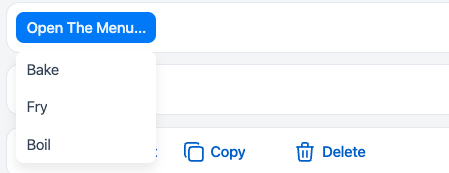
Sets the text on the button. Default: Open The Menu….
Menu items source string
Sets where the menu items come from. You cannot bind this property.
- Static (default): you add each item by hand in Menu items.
- Dynamic: the widget builds items from Source data.
Menu items
Lists the menu items. Shows when Menu items source is Static. New widgets start with three items: Bake, Fry, and Boil. You can add, rename, reorder, and remove items.
Click an item to open its settings:
- Label
string: the text of the item. - Visible
boolean: shows or hides the item. - Disabled
boolean: stops users from clicking the item. - onClick: the action that runs when users click the item.
Source data array
Takes an array of items to show in the menu. Shows when Menu items source is Dynamic. The array can hold up to 10 items. If it has more, the widget shows an error and no items.
Example:
{{Query1.data}}
Configure menu items
Sets how each dynamic menu item looks and acts. Shows when Menu items source is Dynamic and Source data has a value. Use {{currentItem}} to read the current row of Source data.
- Label
string: the text of each item, for example{{currentItem.name}}. - Visible
boolean: shows or hides each item. - Disabled
boolean: stops users from clicking each item. - onClick: the action that runs when users click an item. In this action,
currentItemholds the row andcurrentIndexholds its position.
General
Visible boolean
Controls whether the widget is visible. Default: on.
Disabled boolean
Stops users from opening the menu. Default: off.
Animate loading boolean
Controls the loading animation of the widget. Default: on.
Style properties
These properties appear in the Style tab of the property pane.
General
Button variant string
Sets the look of the button. Options: Filled (default), Outlined, Subtle, Ghost.
Values for code: filled, outlined, subtle, ghost.
Button color string
Sets the semantic color of the button. Options: Accent (default), Neutral, Positive, Negative, Warning.
Values for code: accent, neutral, positive, negative, warning.
Icon
Icon string
Sets an icon to show on the button.
Position string
Sets where the icon appears. Options: start (default) or end. You cannot bind this property.
Reference properties
Reference properties let you read the widget's state in bindings and code, for example {{MenuButton1.isVisible}}. You cannot set them directly.
isVisible boolean
Shows whether the widget is visible.
Example:
{{MenuButton1.isVisible}}
label string
Holds the button label.
Example:
{{MenuButton1.label}}
Methods
Methods let you change the widget's properties from code, for example in a JS Object.
setVisibility (param: boolean): Promise
Shows or hides the widget.
Example:
MenuButton1.setVisibility(false)
setDisabled (param: boolean): Promise
Turns the button on or off.
Example:
MenuButton1.setDisabled(true)
Events
onClick (menu item)
Each menu item has its own onClick event. It runs when users click that item. Set it in the item settings (static items) or in Configure menu items (dynamic items).
With dynamic items, currentIndex counts only visible items. If you hide some items, currentItem may not match the item users clicked. Avoid hiding dynamic items when the action reads currentItem.