Table (ALPHA)
Responsive Widgets are in alpha and available by invitation only on Business and Enterprise plans. Behavior and properties may change. To request access, open a support ticket and name the feature Responsive Widgets (ALPHA).
The Table widget shows an array of objects as rows and columns. Users can search, sort, filter, page through, and select rows. You can add row actions, bulk actions for selected rows, grouping, tree rows, and a form row for adding new data.
Widget type: WDS_ANVIL_TABLE_WIDGET
New tables get the name AnvilTable1, AnvilTable2, and so on. The examples on this page use AnvilTable1.
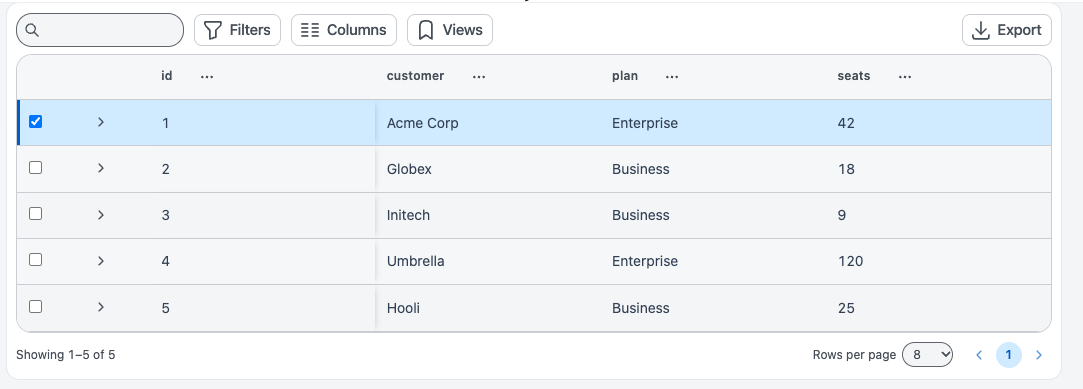
Content properties
These properties appear in the Content tab of the property pane.
Data
Table data array
Sets the rows of the table. Takes an array of objects. Each object is a row, and each key is a column. You can connect a query or API to the table from this control, or write a binding.
Example:
{{getOrders.data}}
Columns
Lists the table columns. The table creates a column for each key in Table data. Click a column to open its settings. For details, see Column properties. Column names must be unique.
Update mode string
Sets how users save edited cells. Options: Single Row (default) or Multi Row. This property shows only when at least one column is editable.
Primary key column string
Sets a column with a unique value for each row. The table uses it to keep selectedRows and triggeredRow tied to the right rows when the data changes.
Pagination
Page size number
Sets the number of rows on each page. The minimum is 1. New tables start at 8.
Show pagination boolean
Shows or hides the pagination controls. Default: on.
Search & filters
Allow searching boolean
Shows or hides the search box. Default: on.
Default search text string
Sets search text that the table applies when it loads. This property shows only when Allow searching is on.
Row selection
Default selected row number
Sets the index of the row that is selected when the table loads. Use -1 for no selection. New tables start at 0. This property shows only when Enable multi-row selection is off.
Default selected rows array
Sets the indexes of the rows that are selected when the table loads, for example [0, 2]. This property shows only when Enable multi-row selection is on.
Enable multi-row selection boolean
Lets users select more than one row. You cannot bind this property.
onRowSelected
Sets the action that runs when a user selects a row. See Events.
Sorting
Column sorting boolean
Lets users sort the table by clicking a column header. Default: on.
onSort
Sets the action that runs when a user sorts a column. This property shows only when Column sorting is on.
General
Visible boolean
Controls whether the widget is visible. Default: on.
Animate loading boolean
Controls the loading animation of the widget. Default: on.
Table features
Row selection checkboxes boolean
Shows a checkbox on each row. Users select rows with the checkboxes, and the selection toolbar shows your bulk actions. Default: on.
Columns menu boolean
Shows the Columns menu in the table toolbar. Users can change the row spacing there. Default: on.
Saved views boolean
Shows the saved views menu. Default: on.
Fullscreen button boolean
Shows a button that opens the table in full screen. Default: off.
Height mode string
Sets how the table height works. Options:
- Fixed (scroll inside) (default): the table keeps its height and scrolls inside.
- Auto (grow with content): the table grows with its rows.
Search placeholder string
Sets the placeholder text in the search box.
Virtualized rows string
Sets whether the table renders only the rows on screen. This helps with large pages. Options:
- Auto (past 100 rows) (default): turns on when a page has more than 100 rows.
- Always
- Off
Server side pagination boolean
Lets your query fetch one page of data at a time. Use AnvilTable1.pageNo and AnvilTable1.pageSize in the query. Default: off.
Total records number
Sets the total number of rows across all pages. The table uses it to show the row count and page numbers. This property shows only when Server side pagination is on.
Example:
{{Query1.data.total}}
onPageChange
Sets the action that runs when the page changes. Re-run your query here. This property shows only when Server side pagination is on.
onPageSizeChange
Sets the action that runs when a user changes the rows per page. This property shows only when Server side pagination is on.
Grouping
Group by column string
Sets a column name (ID or alias) to group rows under headers that users can collapse. Works with client-side data only.
Group aggregate string
Sets the value that the group row shows for number columns. Options: None (default), Sum, Average, Count. This property shows only when Group by column is set.
Tree data
Children key string
Sets the key in each row that holds its child rows, for example children. Leave it empty to turn off tree mode.
- If Group by column is set, the table ignores this property.
- Child rows are for display only. Users cannot select, edit, or run row actions on them.
- Search, filters, sorting, and exports leave out child rows.
- Works with client-side data only. The table does not save which rows are expanded.
Adding a row
Allow adding a row boolean
Lets users add a new row to the table.
Default values object
Sets the starting values for a new row. This property shows only when Allow adding a row is on.
Example:
{{ { "status": "NEW" } }}
onAddNewRowSave
Sets the action that runs when a user saves the new row. This property shows only when Allow adding a row is on.
onAddNewRowDiscard
Sets the action that runs when a user discards the new row. This property shows only when Allow adding a row is on.
Row actions
Row actions
Adds actions to a menu at the end of each row. Each action has these settings:
- Label: the text of the action.
- Visible: shows or hides the action.
- onClick: the action to run.
{{currentRow}}holds the row data.
Bulk actions
Bulk actions
Adds actions to the selection toolbar. The toolbar shows when users select rows. Each action has these settings:
- Label: the text of the action.
- Visible: shows or hides the action.
- onClick: the action to run.
{{selectedRows}}holds the selected rows.
Style properties
These properties appear in the Style tab of the property pane.
Rows
Alternate row striping boolean
Gives every other row a different background. Default: off.
Alternate row color string
Sets the background of striped rows. This property shows only when Alternate row striping is on.
Cell borders string
Sets which cell borders show. Options: Horizontal only (default), All borders, No borders.
Values for code: horizontal, all, none.
Row spacing string
Sets the default space in each row. Users can change it in the Columns menu. Options: Compact, Comfortable (default), Spacious.
For finer control, set --anvil-table-cell-padding-x and --anvil-table-cell-padding-y in Custom CSS.
Header
Background string
Sets the background color of the header row.
Text color string
Sets the text color of the header row.
Uppercase labels boolean
Shows the column headers in uppercase.
Typography
Font family string
Sets the font of the table. Takes any CSS font stack, for example Inter, sans-serif.
Font size string
Sets the text size of the table. Takes any CSS size, for example 14px.
Text color string
Sets the color of the cell text.
Conditional formatting
Rules array
Styles cells or rows when a value matches a condition. Each rule is an object.
- A cell rule lists
columnsand styles those cells. - A row rule sets
scope: "row"and onecolumn. It styles the whole row from that column's value. conditionis one ofisEqual,notEqual,contains,gt,gte,lt,lte,empty, ornotEmpty.stylecan setbackgroundColor,textColor, andfontWeight.
Example:
{{[
  { columns: ["status"], condition: "isEqual", value: "FAILED", style: { backgroundColor: "#fde8e8", textColor: "#b91c1c", fontWeight: "bold" } },
  { scope: "row", column: "status", condition: "isEqual", value: "FAILED", style: { backgroundColor: "#fff7ed" } }
]}}
Custom CSS
Custom CSS string
Adds CSS to style this table. Appsmith prefixes your selectors so they target this table. Target these class names, or set --anvil-table-* variables:
.anvil-table__header-cell.anvil-table__row.anvil-table__row--alt.anvil-table__cell.anvil-table__toolbar.anvil-table__footer
Example:
.anvil-table__row--alt { background: #f8fafc; }
Treat Custom CSS as code. Write it yourself and keep it static. Do not bind it to user input, query results, or other data that app users can change.
Column properties
Click a column in the Columns list to open its settings. The settings you see depend on the column type.
Content: Data
Column type string
Sets how the column shows its data. Options: Button, Number, Plain text, URL, Date.
Values for code: button, number, text, url, date.
Property Name string
Sets the key for this column in selectedRow. This property shows only for columns you add yourself, with the type Plain text, Number, URL, or Date. Changing the column name overwrites this value.
Display text string
Sets the text that a URL column shows in place of the link. Shows only for URL columns. You cannot bind this property.
Date format string
Sets the date format of the incoming data. Default: YYYY-MM-DD HH:mm. Shows only for Date columns.
Options include UNIX timestamp in seconds (Epoch) or milliseconds (Milliseconds), ISO 8601 (YYYY-MM-DDTHH:mm:ss.SSSZ), YYYY-MM-DD, DD/MM/YYYY, MM/DD/YYYY, LLL, and LL.
Display format string
Sets the date format that users see. Default: YYYY-MM-DD. Shows only for Date columns. It has the same options as Date format.
Content: Basic (Button columns)
Text string
Sets the label of the button. Default: Action.
onClick
Sets the action that runs when a user clicks the button. {{currentRow}} holds the row data.
Content: General (all columns)
Visible boolean
Controls whether the cells in the column are visible. Default: on.
Disabled boolean
Stops users from clicking the button. Default: off. Shows only for Button columns.
Content: Validation (editable columns)
This section shows only when the column is editable and its type is Plain text, Number, or Date.
Min number
Sets the smallest allowed value. Shows only for Number columns.
Max number
Sets the largest allowed value. Shows only for Number columns.
Min Date string
Sets the earliest allowed date. Shows only for Date columns.
Max Date string
Sets the latest allowed date. Shows only for Date columns.
Regex string
Checks the cell value against a regular expression and shows an error if it fails. Hidden for Date columns.
Valid boolean
Sets an expression that decides if the edited value is valid. Default: true. Hidden for Date columns.
Error message string
Sets the message to show when the Regex or Valid check fails. Hidden for Date columns.
Required boolean
Makes the cell value required.
Content: Events (editable columns)
This section shows only when the column is editable.
onSubmit
Runs when the user presses Enter or clicks outside the cell. Shows for Plain text and Number columns.
onDateSelected
Runs when the user picks a date in the calendar. Shows for Date columns.
Content: Date Settings (editable Date columns)
This section shows only for Date columns that are editable.
First Day Of Week number
Sets the first day of the week in the calendar. Use 0 for Sunday through 6 for Saturday. Default: 0.
Show Shortcuts boolean
Shows a menu of date shortcuts.
Content: Save Button and Discard Button (edit actions column)
These sections show only for the edit actions column. Each button has these settings:
- Text (
saveActionLabel,discardActionLabel) - onSave or onDiscard: the action to run.
- Visible (default: on) and Disabled (default: off).
- Style: Button color, Button variant (Primary, Secondary, Tertiary), Border radius, Icon, and icon Position (default: left).
Style: General (Button columns)
Button variant string
Sets the look of the button. Options: Filled (default), Outlined, Subtle, Ghost.
Values for code: filled, outlined, subtle, ghost.
Style: Text formatting
Emphasis string
Makes the text bold, italic, or both. Values: BOLD, ITALIC. Shows for Plain text, Number, URL, and Date columns.
Style: Color (Button columns)
Button color string
Sets the semantic color of the button. Options: Accent (default), Neutral, Positive, Negative, Warning. Hidden for Plain text, Number, URL, and Date columns.
Values for code: accent, neutral, positive, negative, warning.
Reference properties
Reference properties let you read the widget's state in bindings and code, for example {{AnvilTable1.isVisible}}. You cannot set them directly.
isVisible boolean
Shows whether the widget is visible.
Example:
{{AnvilTable1.isVisible}}
tableData array
Holds the data in the table.
Example:
{{AnvilTable1.tableData}}
selectedRow object
Holds the data of the selected row. With multi-row selection on, it holds the last selected row.
Example:
{{AnvilTable1.selectedRow.id}}
selectedRows array
Holds the data of all selected rows.
Example:
{{AnvilTable1.selectedRows}}
selectedRowIndex number
Holds the index of the selected row.
Example:
{{AnvilTable1.selectedRowIndex}}
selectedRowIndices array
Holds the indexes of the selected rows when multi-row selection is on.
Example:
{{AnvilTable1.selectedRowIndices}}
triggeredRow object
Holds the data of the row where the user last clicked a button or row action.
Example:
{{AnvilTable1.triggeredRow}}
triggeredRowIndex number
Holds the index of the row where the user last clicked a button or row action.
Example:
{{AnvilTable1.triggeredRowIndex}}
updatedRow object
Holds the data of the row the user last edited.
Example:
{{AnvilTable1.updatedRow}}
updatedRows array
Holds the rows the user edited.
Example:
{{AnvilTable1.updatedRows}}
updatedRowIndices array
Holds the indexes of the rows the user edited.
Example:
{{AnvilTable1.updatedRowIndices}}
newRow object
Holds the data of the new row.
Example:
{{AnvilTable1.newRow}}
isAddRowInProgress boolean
Shows whether a new row is in progress.
Example:
{{AnvilTable1.isAddRowInProgress}}
pageNo number
Holds the current page number. Starts at 1.
Example:
{{AnvilTable1.pageNo}}
pageSize number
Holds the number of rows on each page.
Example:
{{AnvilTable1.pageSize}}
pageOffset number
Holds the row offset of the current page. Use it in server-side pagination queries.
Example:
{{AnvilTable1.pageOffset}}
previousPageVisited boolean
Shows whether the user went to the previous page.
Example:
{{AnvilTable1.previousPageVisited}}
nextPageVisited boolean
Shows whether the user went to the next page.
Example:
{{AnvilTable1.nextPageVisited}}
totalRecordsCount number
Holds the value of Total records.
Example:
{{AnvilTable1.totalRecordsCount}}
searchText string
Holds the text in the search box.
Example:
{{AnvilTable1.searchText}}
sortOrder object
Holds the sort state as { column, order }. order is asc or desc.
Example:
{{AnvilTable1.sortOrder.column}}
tableHeaders array
Holds the column headers of the table.
Example:
{{AnvilTable1.tableHeaders}}
filters array
Holds the filters that are applied for server-side filtering. This property may not be available on your instance yet.
Example:
{{AnvilTable1.filters}}
Methods
Methods let you change the widget's properties from code, for example in a JS Object.
setVisibility (param: boolean): Promise
Shows or hides the widget. Pass true or false.
Example:
AnvilTable1.setVisibility(false)
setData (param: array): Promise
Sets the table data.
Example:
AnvilTable1.setData([{ name: "John" }])
setSelectedRowIndex (param: number): Promise
Selects a row by index. Not available when multi-row selection is on.
Example:
AnvilTable1.setSelectedRowIndex(2)
setSelectedRowIndices (param: array): Promise
Selects rows by index. Available only when multi-row selection is on.
Example:
AnvilTable1.setSelectedRowIndices([0, 2])
Events
onRowSelected
Runs when a user selects a row, by clicking it or with a checkbox.
onSort
Runs when a user sorts a column. Available when Column sorting is on.
onPageChange
Runs when the page changes. Available when Server side pagination is on.
onPageSizeChange
Runs when a user changes the rows per page. The table goes back to page 1. Available when Server side pagination is on.
onAddNewRowSave
Runs when a user saves a new row. {{newRow}} holds the new row. Available when Allow adding a row is on.
onAddNewRowDiscard
Runs when a user discards a new row. Available when Allow adding a row is on.
Row action onClick
Runs when a user clicks a row action. {{currentRow}} holds the row data.
Bulk action onClick
Runs when a user clicks a bulk action in the selection toolbar. {{selectedRows}} holds the selected rows.