List (ALPHA)
Responsive Widgets are in alpha and available by invitation only on Business and Enterprise plans. Behavior and properties may change. To request access, open a support ticket and name the feature Responsive Widgets (ALPHA).
The List widget repeats a row template once for each item in Items. You design the template by dropping widgets into the template zone inside the list on the canvas. Use it for cards, feeds, and other repeated layouts. For a plain list of text rows, use the Text List widget.
Widget type: WDS_LIST_VIEW_WIDGET
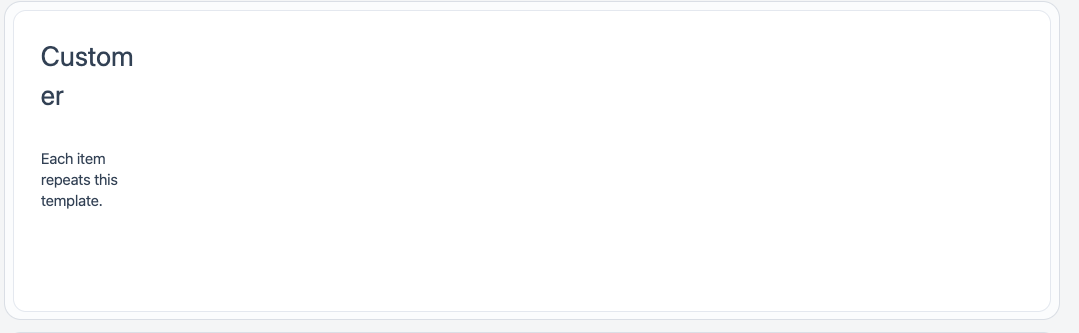
Build the row template
Drop widgets into the template zone on the canvas. Inside the row, use these values in bindings:
currentItem: the data of the current item.currentIndex: the position of the current item.
Example: set the text of a Paragraph in the row to:
{{currentItem.name}}
Content properties
These properties appear in the Content tab of the property pane.
Data
Items array
Sets the array of objects to show. The list repeats the row template once for each object. New widgets start with three sample items.
Example:
{{getProducts.data}}
Pagination
Rows per page number
Sets the number of rows on each page. 0 shows every row with no pagination. Default: 0.
General
Visible boolean
Controls whether the widget is visible. Default: on.
Animate loading boolean
Controls the loading animation of the widget. Default: on.
Style properties
These properties appear in the Style tab of the property pane.
General
Visual separation boolean
Gives the list an elevated background so it stands out as a separate surface. Default: on. You cannot bind this property.
Reference properties
Reference properties let you read the widget's state in bindings and code, for example {{List1.isVisible}}. You cannot set them directly.
isVisible boolean
Shows whether the widget is visible.
Example:
{{List1.isVisible}}
listData array
Holds the value of Items.
Example:
{{List1.listData}}
pageNo number
Holds the current page number. Starts at 1.
Example:
{{List1.pageNo}}
pageSize number
Holds the value of Rows per page.
Example:
{{List1.pageSize}}
Methods
Methods let you change the widget's properties from code, for example in a JS Object.
setVisibility (param: boolean): Promise
Shows or hides the widget.
Example:
List1.setVisibility(false)