Chart (ALPHA)
Responsive Widgets are in alpha and available by invitation only on Business and Enterprise plans. Behavior and properties may change. To request access, open a support ticket and name the feature Responsive Widgets (ALPHA).
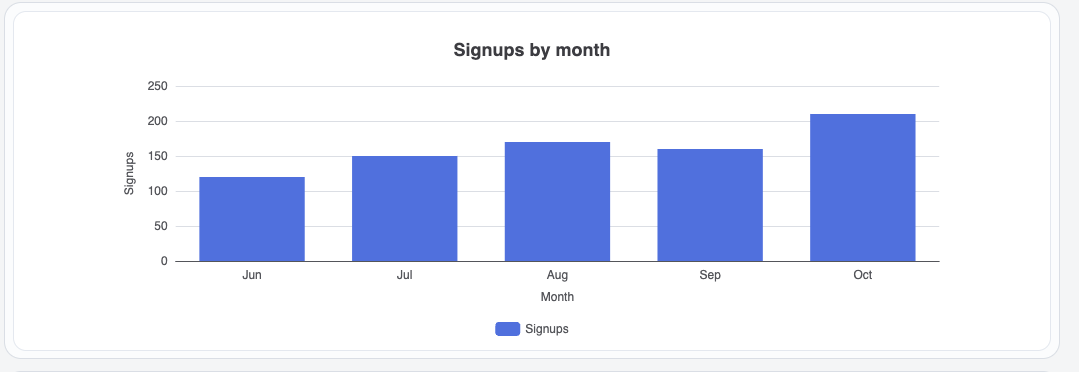
The Chart widget shows one or more data series as a column, bar, line, area, or pie chart. For other chart types, use a custom ECharts configuration. Users can click a data point to run an action.
Widget type: WDS_CHART_WIDGET
Content properties
These properties appear in the Content tab of the property pane.
General
Chart type string
Sets the type of chart. Options:
- Column (vertical bars) (default):
COLUMN_CHART - Bar (horizontal bars):
BAR_CHART - Line:
LINE_CHART - Area:
AREA_CHART - Pie:
PIE_CHART - Custom ECharts:
CUSTOM_ECHART
Title string
Sets the chart title. New widgets start with Sales. Hidden when Chart type is Custom ECharts.
Height (px) number
Sets the height of the chart in pixels. A chart has no natural height, so set it to fit your layout. The minimum is 80. Default: 320.
Show labels boolean
Shows the value on each data point. Default: off. Hidden when Chart type is Custom ECharts.
Data
Chart data array
Sets the data series. Each series is an object with a seriesName and a data array of { x, y } points. Hidden when Chart type is Custom ECharts.
Example:
{{[
  {
    seriesName: "Sales",
    data: [
      { x: "Jan", y: 30 },
      { x: "Feb", y: 50 }
    ]
  }
]}}
Custom ECharts configuration object
Sets the ECharts option object. Shows only when Chart type is Custom ECharts. New widgets start with a sample stacked bar chart.
- Functions are not supported. The widget removes them for security. Use string template formatters, such as
{b}: {c}. - Tooltips always render in rich text mode.
Example:
{{{
  xAxis: { type: "category", data: ["Mon", "Tue", "Wed"] },
  yAxis: { type: "value" },
  series: [{ type: "line", data: [120, 200, 150] }]
}}}
Axis
The Adaptive axis, x-axis label, and y-axis label properties are hidden for Pie and Custom ECharts charts.
Adaptive axis boolean
Starts the value axis at the smallest data value instead of zero. Default: off.
x-axis label string
Sets the label of the x-axis.
y-axis label string
Sets the label of the y-axis.
x-axis label orientation string
Sets the direction of the x-axis labels. Options: Auto (default), Slant, Rotate. Shows only for Line, Area, and Column charts. You cannot bind this property.
General
Visible boolean
Controls whether the widget is visible. Default: on.
Animate loading boolean
Controls the loading animation of the widget. Default: on.
Events
onDataPointClick
Sets the action that runs when a user clicks a data point. See Events.
Reference properties
Reference properties let you read the widget's state in bindings and code, for example {{Chart1.isVisible}}. You cannot set them directly.
isVisible boolean
Shows whether the widget is visible.
Example:
{{Chart1.isVisible}}
chartType string
Holds the chart type, for example COLUMN_CHART.
Example:
{{Chart1.chartType}}
chartData array
Holds the data series of the chart.
Example:
{{Chart1.chartData}}
xAxisName string
Holds the x-axis label.
Example:
{{Chart1.xAxisName}}
yAxisName string
Holds the y-axis label.
Example:
{{Chart1.yAxisName}}
selectedDataPoint object
Holds the last data point the user clicked, as { x, y, seriesTitle, rawEventData? }.
Example:
{{Chart1.selectedDataPoint.y}}
Methods
Methods let you change the widget's properties from code, for example in a JS Object.
setVisibility (param: boolean): Promise
Shows or hides the widget.
Example:
Chart1.setVisibility(false)
setData (param: array): Promise
Sets the chart data series.
Example:
Chart1.setData([{ seriesName: "Sales", data: [{ x: "Jan", y: 30 }] }])
Events
onDataPointClick
Runs when a user clicks a data point. Read the clicked point in {{Chart1.selectedDataPoint}}.