Recover admin access when you don't know the admin email
Symptom
Cause
Instance administrator email addresses are managed in Admin Settings, which only instance administrators can access. If you cannot reach Admin Settings, you cannot see or change the current admin list from the UI. This commonly happens when the previous administrator left the organization, you inherited an existing deployment, or you forgot which account was configured as the instance administrator.
Solution
- Choose the email address for the new instance administrator.
- Set
APPSMITH_ADMIN_EMAILSusing the platform-specific steps below. - Restart the instance for the change to take effect.
- Sign up with a new email or sign in with an existing account using that email address. The user receives the Instance Administrator role on startup.
- Open Admin Settings to verify access and manage other administrators.
If signup is disabled, ensure APPSMITH_SIGNUP_DISABLED allows the new administrator to register, or use an email address that already has an account on the instance.
If the instance uses SSO-only login, re-enable form login before signing up. See Locked out after misconfiguring or disconnecting SSO.
- Docker
- Helm
- AWS ECS
-
Navigate to your installation folder.
-
Open the
stacks/configuration/docker.envfile. -
Add or update the environment variable:
APPSMITH_ADMIN_EMAILS=your-admin@example.comTo assign more than one instance administrator, separate email addresses with commas.
-
Restart the Docker containers for the changes to take effect:
docker-compose restart appsmith
-
Open a shell on your Kubernetes client.
-
Retrieve the current values from your installation and store them in a file:
helm get values appsmith -n appsmith -o yaml > values.yaml -
Modify parameters under the
applicationConfigsection in thevalues.yamlfile:applicationConfig:
APPSMITH_ADMIN_EMAILS: "your-admin@example.com"To assign more than one instance administrator, separate email addresses with commas.
-
Apply the updated values:
helm upgrade appsmith appsmith-ee/appsmith -f values.yaml -n appsmith
-
Open the AWS ECS console.
-
Select Task Definitions and choose the relevant task definition.
-
Click Create new revision.
-
In the Task Definition config page, edit the Appsmith container.
-
Under Environment, add or update the environment variable:
- Key:
APPSMITH_ADMIN_EMAILS - Value:
your-admin@example.com(comma-separated for multiple administrators)
.png)
- Key:
-
Click Update, then Create to generate a new task definition.
-
In the ECS console, navigate to your cluster and select the service.
-
Update the service to use the latest task definition revision.
-
Review and confirm the update.
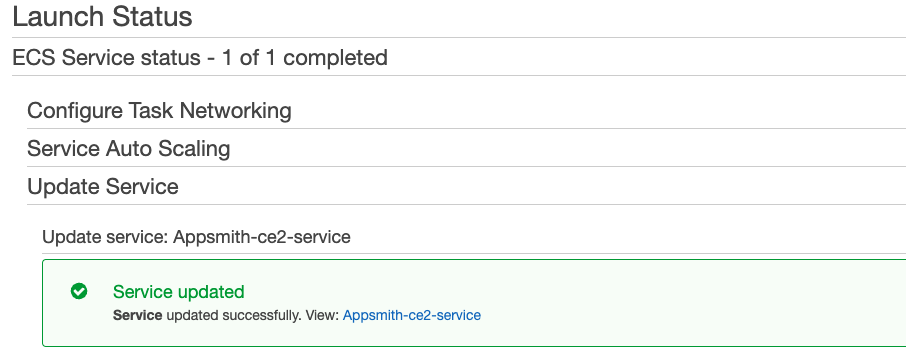
The new ECS task should be running within a minute.