Media (ALPHA)
Responsive Widgets are in alpha and available by invitation only on Business and Enterprise plans. Behavior and properties may change. To request access, open a support ticket and name the feature Responsive Widgets (ALPHA).
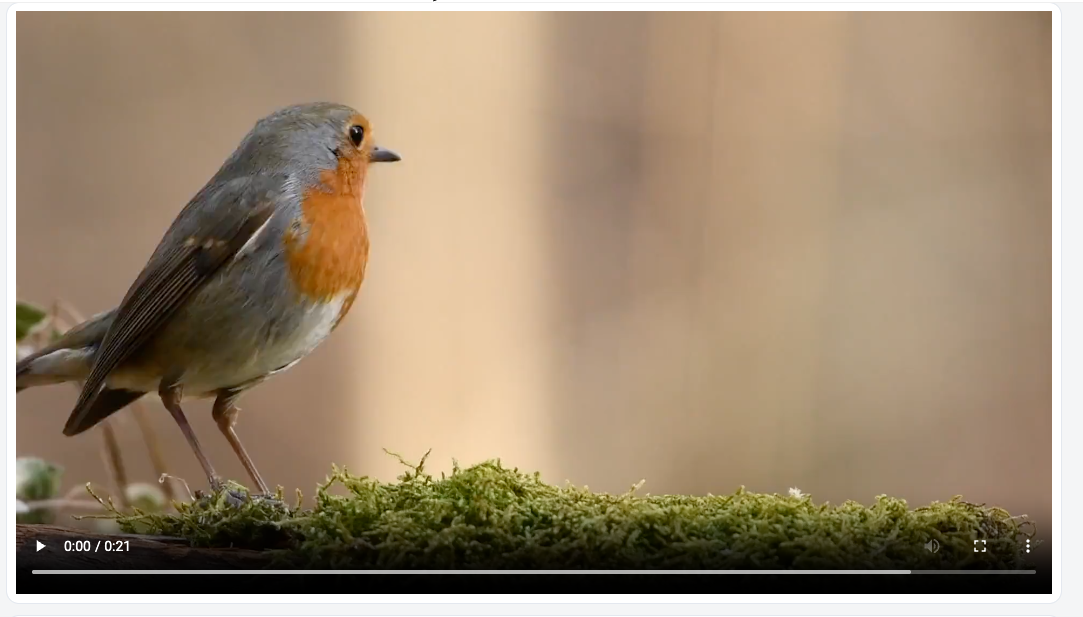
The Media widget plays video or audio. It replaces the separate Video and Audio widgets of fixed-layout apps. It plays direct file URLs, such as .mp4 or .mp3, and links from supported providers.
Widget type: WDS_MEDIA_WIDGET
Which media URLs work
The widget checks the URL before it loads anything. It allows:
- URLs on the same origin as your app, including relative paths.
- Absolute
https:URLs.
It rejects:
http:URLs on another domain.- All
data:URLs, includingdata:imageanddata:video. blob:,javascript:,file:, and other schemes.- Protocol-relative values, such as
//example.com/video.mp4.
When the URL is empty or rejected, the widget does not load a player. It shows "No video to play" or "No audio to play" instead.
The player uses the react-player library. For a direct file URL, it uses the browser's own video or audio player. For a provider link, it loads that provider's embedded player in an iframe. Supported providers are YouTube, Vimeo, Facebook, Twitch, SoundCloud, Streamable, Wistia, Mixcloud, DailyMotion, and Kaltura. The widget does not give these iframes any extra permissions.
Content properties
These properties appear in the Content tab of the property pane.
Data
Media type string
Sets whether the widget plays video or audio. Options: Video (default) or Audio. You cannot bind this property.
URL string
Sets the link to the media file or provider page. See Which media URLs work. New widgets start with a sample video from the Appsmith assets server.
Example:
https://www.youtube.com/watch?v=<video-id>
General
Autoplay boolean
Starts playing the media when it loads. Autoplay is always muted, because browsers block autoplay with sound. Default: off.
Show controls boolean
Shows the player controls, such as play, pause, and volume. Default: on.
Loop boolean
Starts the media again from the beginning when it ends. Default: off.
Play inline boolean
Plays the video inside the page on iOS, instead of in full screen. Shows only when Media type is Video. Default: on.
Visible boolean
Controls whether the widget is visible. Default: on.
Animate loading boolean
Controls the loading animation of the widget. Default: on.
Events
See Events.
Style properties
These properties appear in the Style tab of the property pane.
General
Visual separation boolean
Adds the theme's elevated background and border around the player. This sets it apart from the rest of the page. Default: off.
Reference properties
Reference properties let you read the widget's state in bindings and code, for example {{Media1.isVisible}}. You cannot set them directly.
isVisible boolean
Shows whether the widget is visible.
Example:
{{Media1.isVisible}}
url string
Holds the media URL, as you set it.
Example:
{{Media1.url}}
autoPlay boolean
Shows whether autoplay is on.
Example:
{{Media1.autoPlay}}
playState string
Holds the playback state. Values: NOT_STARTED, PLAYING, PAUSED, ENDED.
Example:
{{Media1.playState === "ENDED" ? "Thanks for watching" : ""}}
Methods
Methods let you change the widget's properties from code, for example in a JS Object.
setVisibility (param: boolean): Promise
Shows or hides the widget.
Example:
Media1.setVisibility(false)
setURL (param: string): Promise
Sets the media URL. The same URL checks apply.
Example:
Media1.setURL("https://example.com/intro.mp4")
setPlaying (param: boolean): Promise
Plays or pauses the media. This method sets Autoplay. Playback started this way is muted. Users can turn the sound on in the player controls.
Example:
Media1.setPlaying(true)
Events
onPlay
Runs when the media starts or resumes playing.
onPause
Runs when the media pauses. It does not run when the media reaches the end.
onEnd
Runs when the media reaches the end.