Chat (ALPHA)
Responsive Widgets are in alpha and available by invitation only on Business and Enterprise plans. Behavior and properties may change. To request access, open a support ticket and name the feature Responsive Widgets (ALPHA).
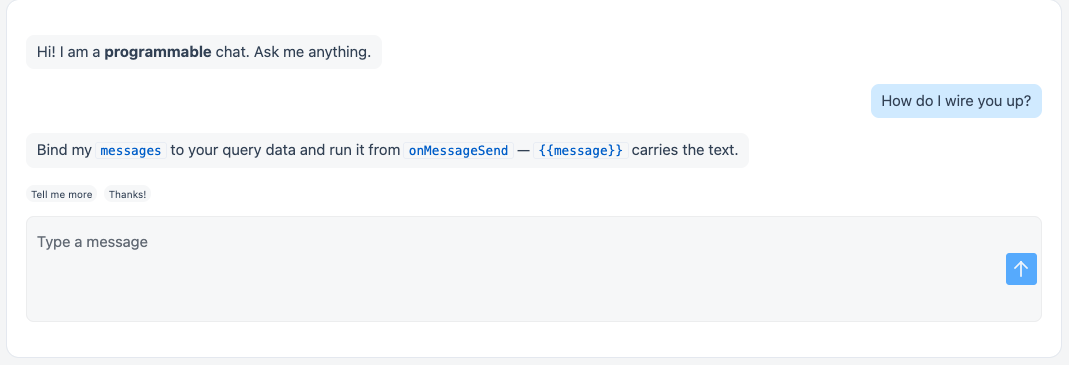
The Chat widget shows a conversation and a message box. You control the conversation: bind the messages to your own data, and run your own AI query or JS Object when users send a message. Show the chat inline on the page, or as a floating chat bubble in a corner of the page.
Widget type: WDS_CHAT_WIDGET
How to connect the widget
The Chat widget has no AI backend of its own. You connect it in three steps:
- Store the conversation as an array, for example in a JS Object variable or in the Appsmith store.
- Bind Messages to that array.
- In onMessageSend, run your query or JS Object. Use
{{message}}to read the text the user sent. Add the user message and the reply to the array.
Example JS Object:
export default {
  messages: [],

  async send(text) {
    this.messages = [
      ...this.messages,
      { id: String(Date.now()), role: "user", content: text },
    ];
    const reply = await AskAI.run({ prompt: text });
    this.messages = [
      ...this.messages,
      { id: String(Date.now() + 1), role: "assistant", content: reply.text },
    ];
  },
};
Bind Messages to {{JSObject1.messages}} and set onMessageSend to {{JSObject1.send(message)}}. Here AskAI stands for your own AI query, and reply.text stands for the field in its response that holds the answer.
To show the typing indicator while the query runs, bind Typing indicator to {{AskAI.isLoading}}.
Message format and limits
Each item in Messages is an object with these fields:
| Field | Type | Required | What it does |
|---|---|---|---|
id | string or number | No | Identifies the message. If it is missing, the widget uses the message position. |
role | string | No | user, assistant, or system. Any other value is treated as assistant. User messages align to the right. System messages are centered. |
content | string | No | The message text, in Markdown. Other types are converted to text. |
timestamp | number, string, or date | No | Shown above the message as HH:mm, dd MMM. A value that is not a valid date is not shown. |
avatar | string | No | Image URL for an avatar next to the message. If the URL is rejected, the avatar shows initials instead. |
The widget handles bad data safely:
- If Messages is not an array, the widget shows "No messages yet."
- Items that are not objects are skipped.
Message content and limits:
- Users press Enter to send a message. Shift+Enter adds a new line.
- The widget trims spaces from the start and end of a message. It does not send an empty message.
- The widget sets no length limit on a message. Your query or AI provider may still limit it. The message box grows up to six lines and then scrolls.
- Message content renders as Markdown. The widget sanitizes raw HTML before it shows a message. It removes scripts, iframes, styles, event handlers, and
javascript:ordata:links. It keeps a safe list of common HTML elements, similar to GitHub. Images in a message still load from their external URLs. - Suggested replies always render as plain text.
Content properties
These properties appear in the Content tab of the property pane.
Data
Messages array
Sets the conversation to show. See Message format and limits. New widgets start with three sample messages.
Example:
[{ "id": "1", "role": "assistant", "content": "Hi! How can I help?" }]
Typing indicator boolean
Shows a typing indicator under the last message. Turn it on while your query runs. Default: off.
Suggested replies array
Sets quick-reply chips above the message box. When users click a chip, the widget sends its text as a message, the same as typing it. Default: ["Tell me more", "Thanks!"]. Only strings and numbers are used. Empty items are skipped.
General
Placeholder string
Sets the placeholder text in the message box when it is empty. Default: Type a message.
Display mode string
Sets where the chat appears. Default: Inline. You cannot bind this property.
- Inline: Shows the chat in the page layout.
- Floating: Shows a chat bubble in a corner of the page. Users click the bubble to open the chat panel over the page. The page stays usable while the panel is open. On narrow screens the panel takes the full width. While the panel is closed, the bubble shows a count of new messages.
In the editor, a floating chat shows a small placeholder on the canvas so you can still select it.
Values for code: inline, floating.
Position string
Sets the page corner for the floating chat. Options: Bottom right (default), Bottom left, Top right, Top left. This property shows only when Display mode is Floating.
Values for code: bottom-right, bottom-left, top-right, top-left.
Default open boolean
Sets whether the floating chat panel starts open. Default: off. This property shows only when Display mode is Floating.
Visible boolean
Controls whether the widget is visible. Default: on.
Disabled boolean
Turns off the message box and the suggested replies. Default: off.
Animate loading boolean
Controls the loading animation of the widget. Default: on.
Reference properties
Reference properties let you read the widget's state in bindings and code, for example {{Chat1.isVisible}}. You cannot set them directly.
messages array
Holds the value of the Messages property.
Example:
{{Chat1.messages}}
lastSentMessage string
Holds the text of the last message the user sent.
Example:
{{Chat1.lastSentMessage}}
isOpen boolean
Shows whether the floating chat panel is open. It starts with the value of Default open.
Example:
{{Chat1.isOpen}}
isTyping boolean
Shows whether the typing indicator is on.
Example:
{{Chat1.isTyping}}
isVisible boolean
Shows whether the widget is visible.
Example:
{{Chat1.isVisible}}
Methods
Methods let you change the widget's properties from code, for example in a JS Object.
setVisibility (param: boolean): Promise
Shows or hides the widget.
Example:
Chat1.setVisibility(false)
setDisabled (param: boolean): Promise
Turns the message box and suggested replies on or off.
Example:
Chat1.setDisabled(true)
setIsOpen (param: boolean): Promise
Opens or closes the floating chat panel. The method sets Default open, and isOpen follows it.
Example:
Chat1.setIsOpen(true)
Events
onMessageSend
Runs when users send a message, from the message box or by clicking a suggested reply. Use {{message}} in the action to read the text that was sent.
onOpen
Runs when the floating chat opens, for example when users click the chat bubble. This event shows only when Display mode is Floating.
onClose
Runs when the floating chat closes, for example when users click the close button or press Escape. This event shows only when Display mode is Floating.