Tabs (ALPHA)
Responsive Widgets are in alpha and available by invitation only on Business and Enterprise plans. Behavior and properties may change. To request access, open a support ticket and name the feature Responsive Widgets (ALPHA).
The Tabs widget groups widgets into panels. Each tab has its own panel, and users switch panels with the tab strip. Use it to split a long page into sections, for example Details, Orders, and Settings.
Widget type: WDS_TABS_WIDGET
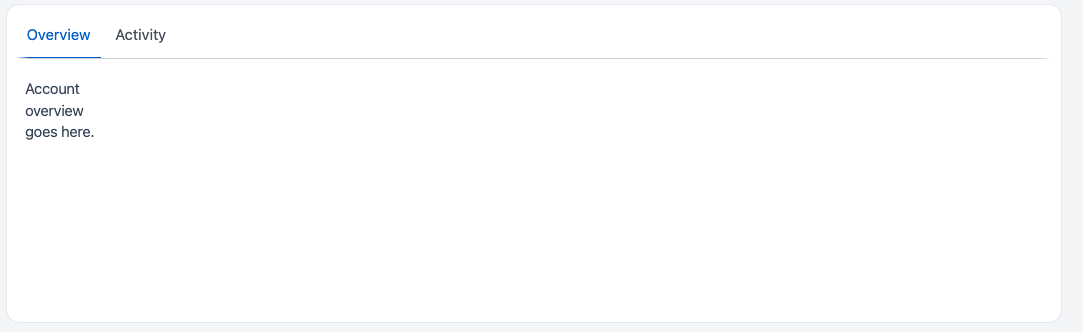
When you add the widget, it starts with two tabs: Tab 1 and Tab 2. Drop widgets into the panel of the selected tab. Only the panel of the active tab is shown. Panels of other tabs are not rendered until users select them.
Content properties
These properties appear in the Content tab of the property pane.
Data
Tabs array
Lists the tabs. In this list you can:
- Add a tab with Add tab.
- Rename a tab.
- Reorder tabs.
- Delete a tab.
Deleting a tab also deletes its panel and every widget in it. Appsmith does not ask you to confirm. To get the tab back, use Undo in the message that appears after the delete.
Open a tab's settings to set the per-tab properties below.
Per-tab properties
- Visible
boolean: Shows or hides this tab. Hidden tabs are left out of the tab strip. You can bind it with JavaScript. - Icon
string: Shows an icon before the tab label. The value must be the name of an icon from the icon list. - Badge
string: Shows a badge with text or a count after the tab label, for example3. Leave it empty to hide the badge. You can bind it with JavaScript, for example{{Query1.data.length}}. - Badge color
string: Sets the semantic color of the badge. Options: Accent, Neutral (default), Positive, Negative, Warning.
Default tab string
Sets the tab that is selected when the page loads. Enter the tab label, for example Tab 1. Default: Tab 1.
The value must match the label of a tab. Otherwise, the property shows the error "Tab name ... does not exist." An empty value is allowed. If the value does not match a visible tab, the widget selects the first visible tab.
General
Visible boolean
Controls whether the widget is visible. Default: on.
Animate loading boolean
Controls the loading animation of the widget. Default: on.
Show tabs boolean
Shows or hides the tab strip. Default: on.
When it is off, the strip is not shown but the active panel still is. Use this to switch panels from code, for example with setSelectedTab() or a bound Default tab, instead of letting users click tabs.
Style properties
These properties appear in the Style tab of the property pane.
General
Visual separation boolean
Gives the tabs container an elevated background so it stands out as a separate surface. Default: off.
Reference properties
Reference properties let you read the widget's state in bindings and code, for example {{Tabs1.isVisible}}. You cannot set them directly.
selectedTab string
Holds the label of the selected tab. It starts with the value of Default tab and changes when users select a tab.
Example:
{{Tabs1.selectedTab}}
isVisible boolean
Shows whether the widget is visible.
Example:
{{Tabs1.isVisible}}
Methods
Methods let you change the widget's properties from code, for example in a JS Object.
setVisibility (param: boolean): Promise
Shows or hides the widget.
Example:
Tabs1.setVisibility(false)
setSelectedTab (param: string): Promise
Selects a tab by its label. The method sets Default tab, and selectedTab follows it.
Example:
Tabs1.setSelectedTab("Tab 2")
Events
onTabSelected
Runs when users select a tab in the tab strip. Read the new tab label from {{Tabs1.selectedTab}}.