Configure Static App URLs
Static app URLs give every application and page a stable, readable route. Use this guide to enable the feature, customize slugs, and understand how static URLs behave across edits, deployments, branches, and imports.
Prerequisites
- A self-hosted Appsmith instance running version 1.91 or later. See the installation guides if you need to set up your instance.
- You need edit access to the application.
- Open the app in Appsmith and go to Settings → General to find the Static URL toggle.
Enable Static URLs for an app
- Open the application settings and navigate to General → Static URL.
- Turn on Enable Static URLs. Appsmith generates an application slug and page slugs based on existing names.
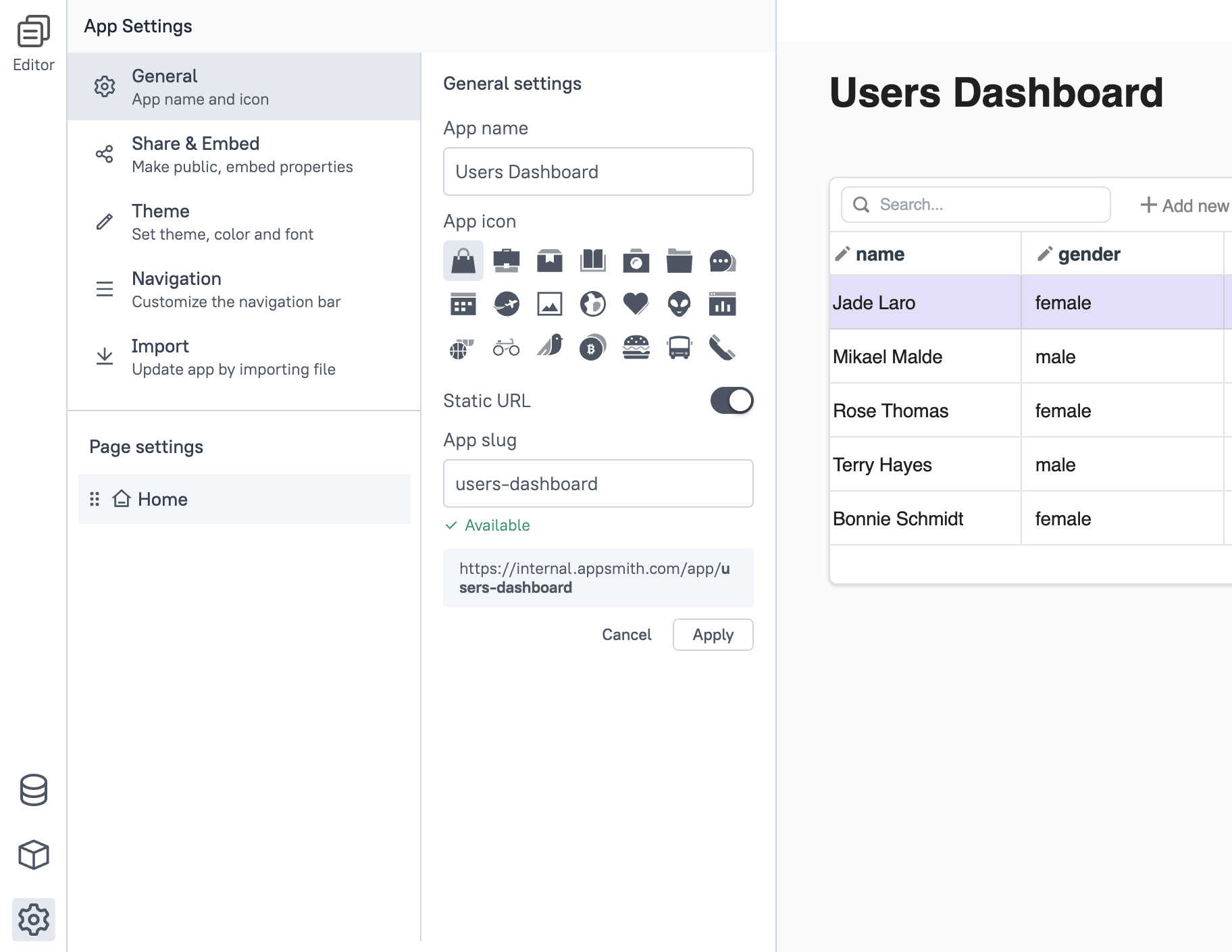
- Click Apply to confirm. A confirmation modal appears
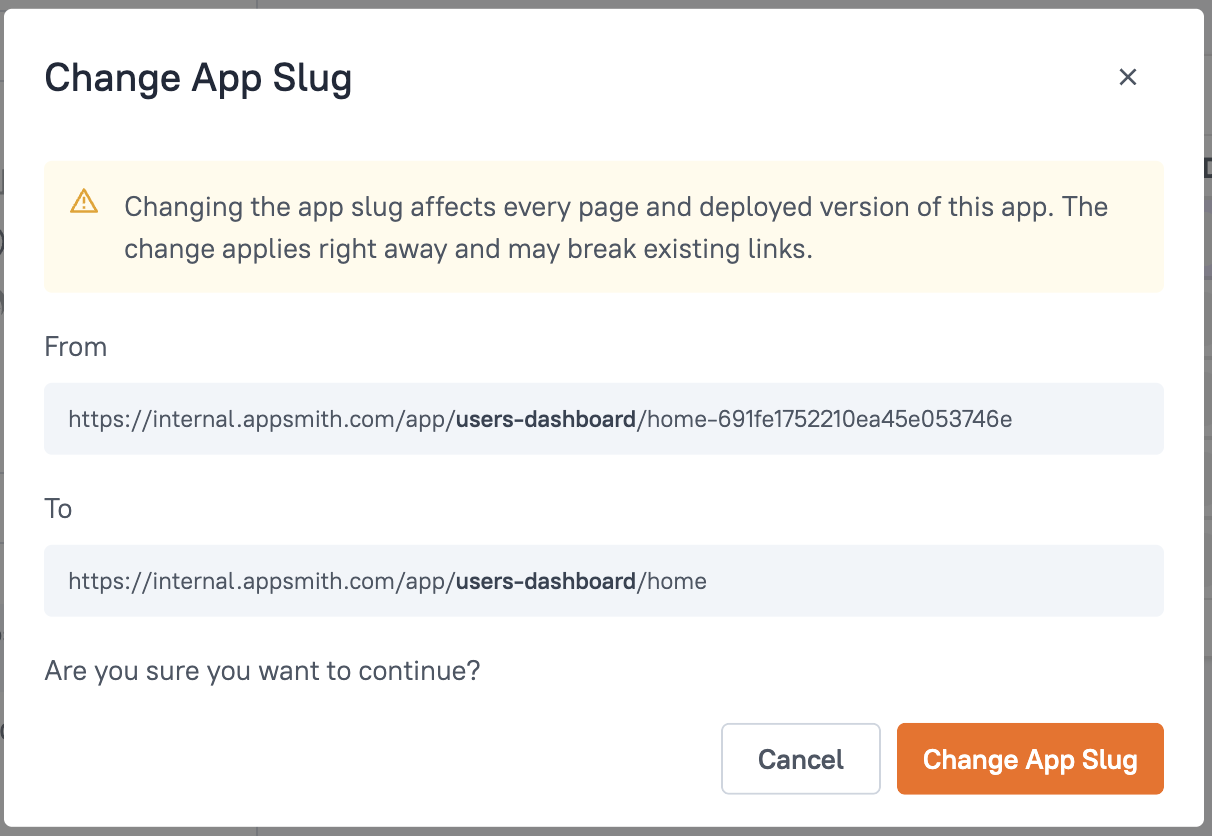
- Review the URL change in the modal, then click Change App Slug to confirm or Cancel to abort. Static URLs become active immediately in both edit and view modes after confirmation.
When static URLs are enabled, the new routes work right away. Meanwhile the old UUID-based URLs will still be working and anyone can continue to use them.
Manage the application URL slug
- The application slug is derived from the app name when the feature is enabled. You can edit it in the Static URL section.
- Use the inline availability check to confirm that the slug is unique across the entire Appsmith instance.
- If a slug is already taken, enter a different value. Appsmith rejects duplicates to prevent routing conflicts.
- Application slug changes update the app URL immediately. In Git-connected apps, each branch reflects the slug that is committed on that branch.
Manage page URL slugs
- When static URLs are enabled for the first time, each page receives a slug and are automatically set in view mode for all existing pages.
- After the initial setup, any changes to page slugs require deployment to reflect in view mode.
- When a new page is created after static URLs are enabled, the page slug is empty by default and automatically syncs with the slug derived from the page name. Renaming the page updates the slug automatically.
- Setting a custom slug locks it in place. Later page renames do not change that slug.
- Page slugs must be unique inside the application. If a slug is already in use, pick a different value.
Keep slugs short, descriptive, and lowercase. Hyphenate multiword names (for example, sales-dashboard).
URL behavior after enabling static URLs
- Appsmith updates view mode URLs (
/app/<app-slug>/<page-slug>) as soon as you enable static URLs. - Legacy UUID-based URLs remain valid, so existing bookmarks and embeds continue to work.
- Static URLs remain active until you disable the feature.
Branching considerations
- When you enable static URLs in edit mode for a branch, the changes apply instantly to both edit and view modes of that branch.
- After the initial setup, any subsequent changes to page slugs in edit mode require deployment to reflect in view mode.
- Enabling static URLs on one branch does not automatically update other pre-existing branches. Enable the setting manually on any branch that predates the change; branches created from a static-URL-enabled branch inherit it automatically.
- Different branches of an application can have different unique app slug URLs. However, it's a best practice to configure the same app slug across all branches to maintain consistency.
Cross-Instance deployment and Version control
- Exporting, importing, or syncing an application (via JSON or Git sync) preserves the static URL settings. The same routes continue to work as long as the application slug is available on the target instance.
- Importing into the same Appsmith instance automatically appends a short suffix when needed to keep the application slug unique.
- After import, you can rename slugs manually if you prefer a different URL.
Since static URLs remain constant, you can synchronize your apps across different instances without worrying about broken links. The same static URL structure works consistently across environments.
Navigate between apps
With static URLs enabled, you can navigate between different apps using the navigateTo action. Static URLs provide predictable routes that remain consistent across instances, making cross-app navigation reliable.
To navigate to another app:
-
Use a widget (such as a Button or Icon button) and set its onClick property to navigate to another app.
-
Select the Navigate to action and choose URL as the destination type.
-
Enter the static URL in the following format:
{{appsmith.URL.host}}/app/<app-slug>/<page-slug>Replace
<app-slug>and<page-slug>with the actual slugs of the target application and page.Example:
{{appsmith.URL.host}}/app/sales-dashboard/reports
Embed apps with static URLs
You can embed apps that use static URLs in the same way. Static URLs make embedding more reliable by providing consistent routes that don't change when apps are exported and imported or version controlled.
To embed an app with static URLs:
-
Use the static URL format with the
embed=trueparameter:<instance-url>/app/<app-slug>/<page-slug>?embed=trueExample:
https://app.appsmith.com/app/sales-dashboard/reports?embed=true -
For different environments (development, staging, production), you can configure the instance URL dynamically while keeping the app and page slugs constant. This means you only need to update the instance URL when deploying to different environments, and the app path remains the same across all environments.
Disable static URLs
- Go to Settings → General → Static URL and turn the toggle off.
- Confirm the change to remove the static routes. The app remains accessible through the original UUID-based URLs.
- When you turn the toggle back on, Appsmith regenerates slugs from the current application and page names; earlier custom slug values are not restored automatically.
Version compatibility
Static URLs are available in Appsmith version 1.91 and later. Keep the following compatibility considerations in mind:
-
Importing to older instances: If you import an application with static URLs configured into an Appsmith instance running a version less than 1.91, the static URL feature will not be available, and the app will use the default UUID-based URLs.
-
Git sync with older instances: If your application is Git-connected and synchronized with an instance running a version less than 1.91, static URL changes will not be reflected on that instance. The app will continue to use UUID-based URLs.
-
Overriding static URL changes: If you commit changes from an instance that doesn't have static URL changes (or is running a version less than 1.91), those commits can override the static URL configuration when synced to other instances.
Ensure all instances in your workflow are running Appsmith version 1.91 or later to maintain static URL functionality across all environments.
Troubleshooting and best practices
- If a slug shows as unavailable, choose another value that does not conflict with existing applications or pages.
- Slugs can contain lowercase letters, numbers, and hyphens. Avoid special characters and spaces.
- Deploy changes after editing page slugs so end users in view mode see the updated URLs.
- Leave page slugs empty if you want them to follow page name changes automatically.
Next steps
- Learn how to embed Appsmith apps using static URLs.
- Set up version control with Git to maintain static URLs across branches and instances.
- Learn how to navigate between pages within your app.